
Actions such as changing deactivating an account or updating a role can be performed on a user.
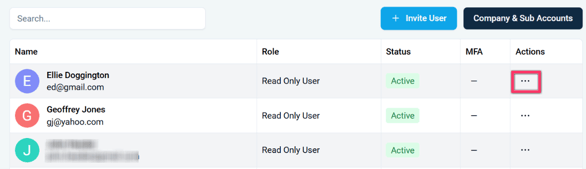
The names and roles of Dashboard users, with the Actions button highlighted.
Changing User's Roles
Account Settings >
- In the user table, click the ellipsis (…) of the desired user. A popout menu will display.
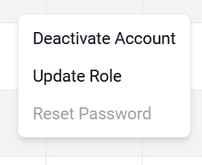
- To update a user’s role, select Update Role. The Update Role screen displays. Select the new role for the user and click the Update button. The user will now have the new role.
- To deactivate a user, select Deactivate Account. Click the Confirm button to complete the process. The selected user will now have an Inactive status.
- To activate a deactivated user, select Activate Account. Click the Confirm button to complete the process. The selected user will now have an Active status.
Successful Completion
In the table, the user’s status will be changed.
More Information