
1. Create an App Registration
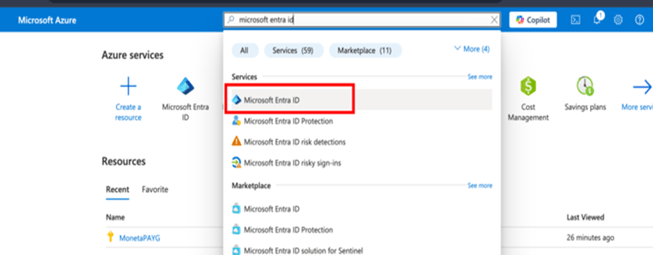
a. Sign into your Azure portal and search for “Microsoft Entra ID.” Select Microsoft Entra ID from the search results.
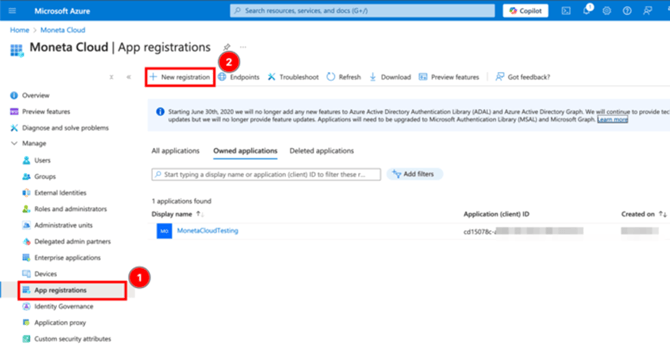
b. Select App registrations on the left side-bar and then 2) select New registration.
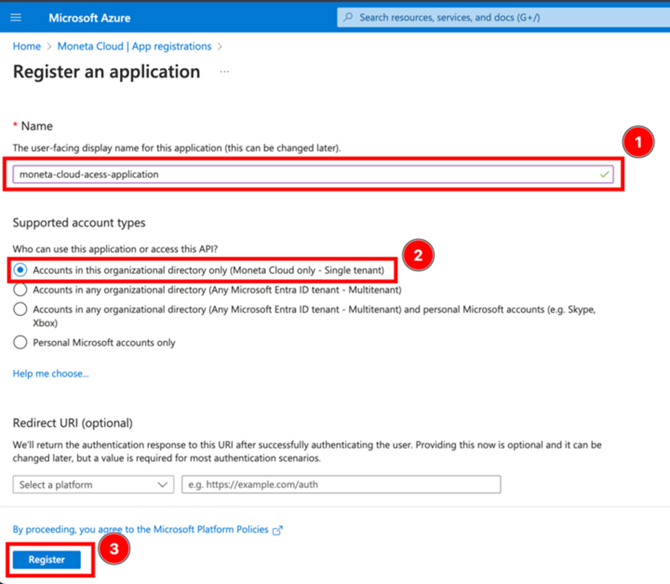
c. Enter a meaningful name like "moneta-access-application" and select the account type as "Accounts in this organizational directory only" and select Register.
2. Create a Client Secret
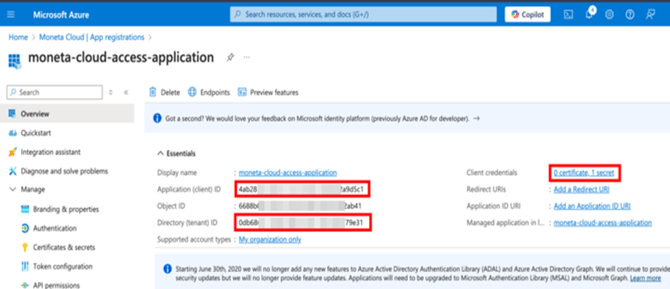
a. In the applications registration overview screen, 1) copy the Client ID and Tenant ID - don't lose it, you will enter it in moneta in just a bit and 2) select Certificate or Secret link next to Client credentials.
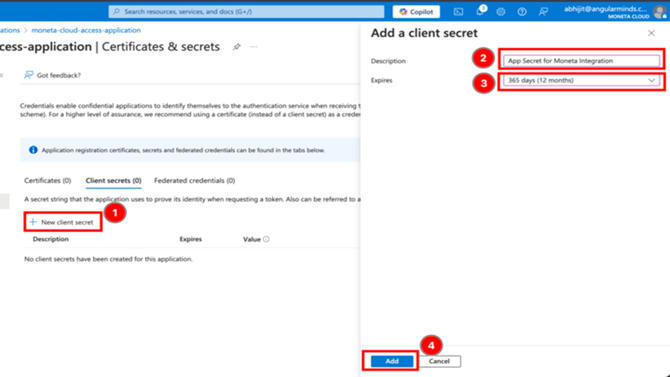
b. On the Secret Creation screen, 1) select New Client Secret 2) enter a description for the new client secret you are creating, 3) select an expiry date, and 4) select Add.
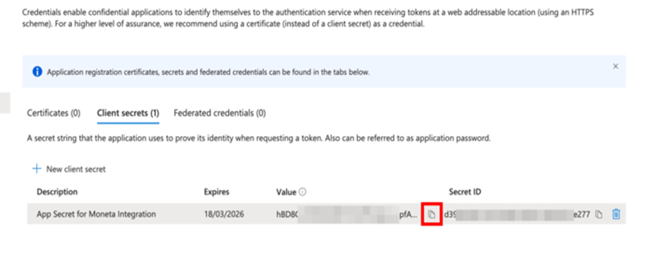
c. After selecting Add, the Client Secret Record will be generated. Copy the Value by clicking the copy button. You MUST copy this BEFORE exiting this screen. Securely store the client secret - it will be entered in moneta shortly.
3. Configure Permission VIA RBAC
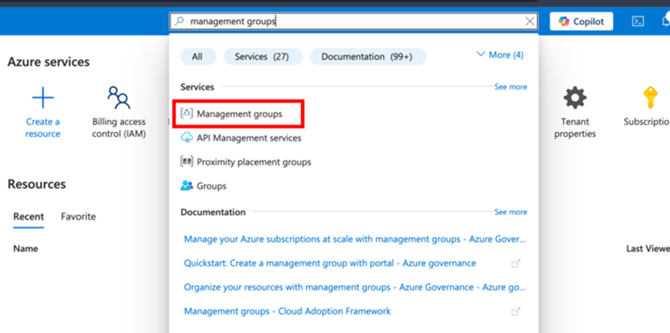
a. Search for Management Groups in the Azure search box and select it from the search results.
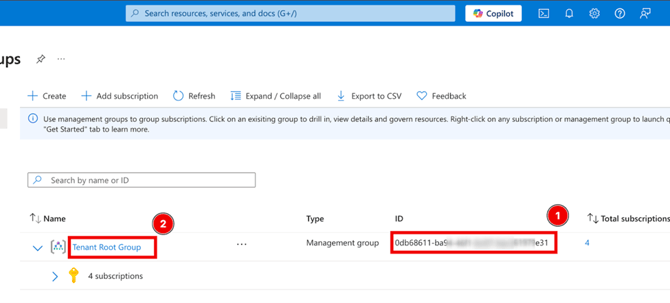
b. 1) Copy the Management Group ID displayed on the page and save it temporarily — you’ll need this ID when configuring the Custom Role. 2) Select the Tenant Root Group or any other management group to which you want moneta to have access.
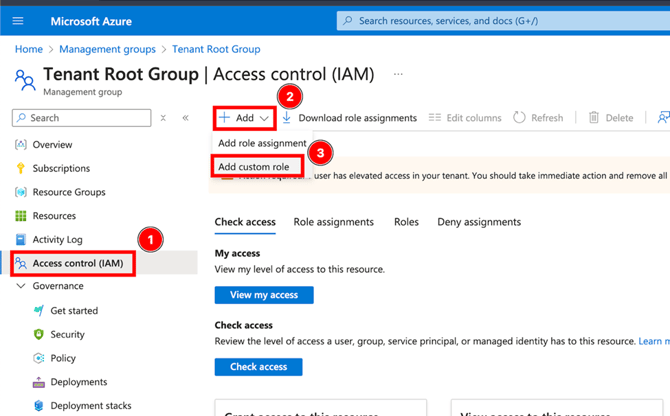
c. You will be navigated to the management group settings page. To create a role with the necessary permissions and to assign the role to your app registration 1) go to Access control (IAM), 2) select Add, and 3) Select Add customer role.
Copy the JSON provided at the end of the document above and paste it into the JSON editor in the JSON step. Replace the placeholder <your-management-group-id> with the Management Group ID you saved earlier. Then click Next to proceed, Review + Create, and then Create.
Go back to the management group Access control (IAM).
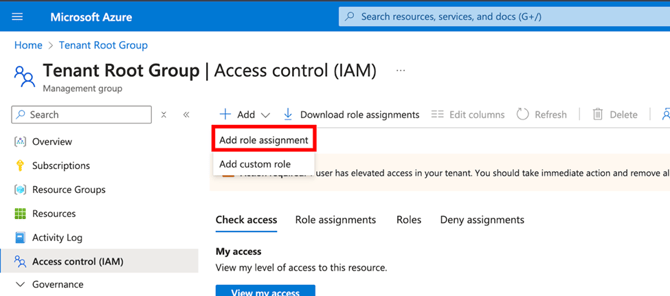
d. Click Add role assignment
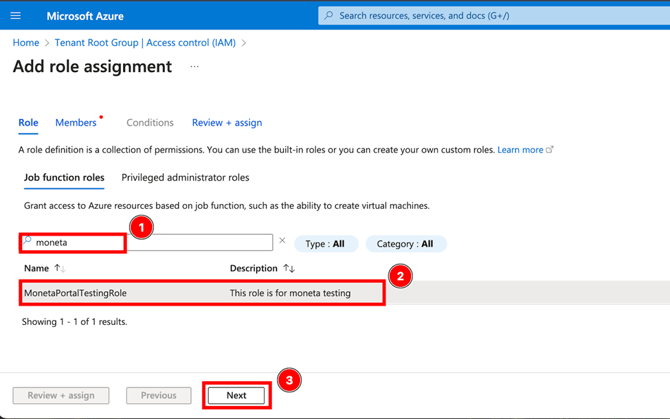
e. Search for the role we just created and select it.
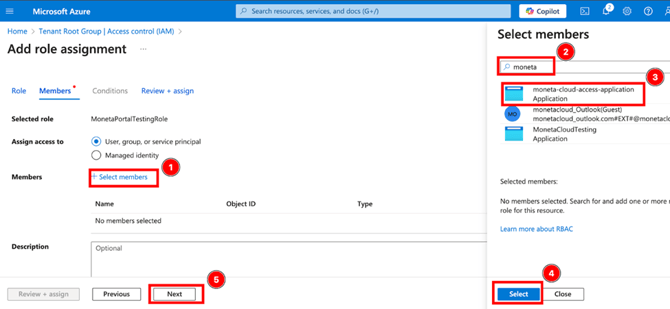
f. 1) Under Assign access to, select User group, or service principal, 2/3) search for your app registration name, and 4) click select and save.
4. Add Azure Account in moneta
a. You are almost there! Securely provide the following that was generated from above and provide to your moneta or partner representative or enter them directly in moneta.
- Azure Tenant ID: Also known as Directory ID
- Client ID: Also known as Application ID
- Client Secret
5. Permissions Setup for Savings Plan and Reserved Instances Visibility
Microsoft requires an additional step to gain this visibility.
a. Search for Cost management + billing in the Azure search box.
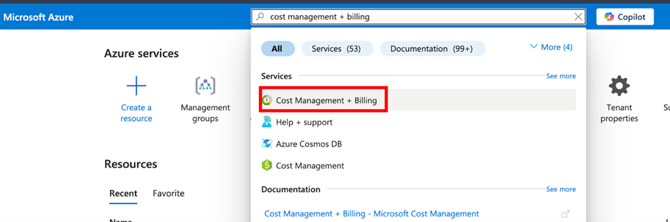
b. On the cost management and billing page, choose your billing account if not selected by default and 1) select Access Control (IAM), 2) select Add, 3) on the role assignment form, choose “Billing account reader” or “Billing account contributor” based on the level of access you want to grant moneta, 4) search for moneta cloud access application that we created and 5) Select Add.
moneta Role
{
  "properties": {
    "roleName": "MonetaCloudPlatformAccessRole",
    "description": "This role gives necessary access to moneta cloud platform",
    "assignableScopes": "/providers/Microsoft.Management/managementGroups/<your management group id>",
    "permissions": [
      {
        "actions": [
          "Microsoft.Authorization/roleAssignments/read",
          "Microsoft.Authorization/roleDefinitions/read",
          "Microsoft.Resources/subscriptions/read",
          "Microsoft.CostManagement/*/read",
          "Microsoft.Advisor/configurations/read",
          "Microsoft.Advisor/recommendations/read",
          "Microsoft.Consumption/*/read",
          "Microsoft.Consumption/budgets/write",
          "Microsoft.Consumption/budgets/delete",
          "Microsoft.Resources/resources/read",
          "Microsoft.Management/managementGroups/read",
          "Microsoft.Billing/*/read"
        ],
        "notActions": [],
        "dataActions": [],
        "notDataActions": []
      }
    ]
  }
}
________________________________________
**Security Disclaimer:** While the provided IAM policy grants the necessary permissions for moneta to function, refer to the Azure Identity Management and access control security best practices for more information.
Copyright © 2025 Moneta Technology, Inc. All rights reserved.